

Another edge case of an overflowing record in a SQL table
As a follow-up to my previous post, I'd like to linger a little longer on the topic of wide rows and the effects of row overflow in SQL Server, and specifically on the storage impact that we can observe in Business Central SaaS tenants when too many rows spill into the row overflow storage unit.
Sample data and the first test
The tests below that I'm going to run will be built around the following table with four text fields.
table 50101 "Large Test Rec"
{
    DataClassification = CustomerContent;

    fields
    {
        field(1; ID; Integer) {}
        field(2; "Text Field 1"; Text[2000]) {}
        field(3; "Text Field 2"; Text[2000]) {}
        field(4; "Text Field 3"; Text[2000]) {}
        field(5; "Text Field 4"; Text[1900]) {}
    }

    keys
    {
        key(PK; ID)
        {
            Clustered = true;
        }
    }
}
Note the Text Field 4 whose length is 1900 characters, unlike the rest of the text fields of the type Text[2000]. For now, note the text length, and I will explain its importance a little later.
To fill the table with test data, I use the procedure below which generates random text string, padding each text field to its full length.
    procedure GenerateRandomText(Length: Integer): Text
    var
        String: Text;
        RandomChar: Char;
        I: Integer;
    begin
        for I := 1 to Length do begin
            RandomChar := Random(94) + 32;
            String += RandomChar;
        end;

        exit(String);
    end;
For this demo, I will insert 10 000 record. Once the app is deployed and the table is populated, I open the table information page in Business Central to check the table size.

So the full table size with 10 000 records is around 80 MB. Let's note the size and run the second test.
Increasing the text size just a little more...
Now I return to my Text Field 4 (which is a little shorter than the rest) and change its length to match it with the rest of the texts in the table. So instead of Text[1900], Text Field 4 becomes Text[2000], like all the rest.
field(5; "Text Field 4"; Text[2000]) {}When I redeploy the app, nothing happens at first. If I open the table information now, the table size will still be 80 MB, as before. I only changed the table metadata allowing the field to store longer texts, but the table data has not been updated yet. Now I want to regenerate the rows, once again filling every field value up to its maximum, including the one I just updated, and see the new size of the table. I increased the total number of characters in all the text fields by approximately 1.3%: from 7900 to 8000. But let's see how this change affects the table size.

And the change in table size looks much more impressive than a mere one percent increase. All of a sudden, the table grew from 80 MB to 120 MB. Why does such a small and seemingly innocent change in the field size cause the superfluous growth in storage consumption?
Compression of RowOverflow data
To explain this magic trick that inflated the table by 40 Megabytes instead of the anticipated modest increase of 1 MB, we need to take a step back and look closer at the table size before increasing the field length. You may have already noticed if you looked carefully at the table definition, that something doesn't add up. The total length of all text fields is 7900 characters (byte pairs), or 15800 bytes - nearly double the size of the data page. The secret of this increased capacity is the data compression which is always enabled in all cloud Business Central tenants. And whenever the row or page compression is enabled, SQL Server will apply Unicode compression on all nchar(n) and nvarchar(n) columns. Just for the reference, Business Central's Text[n] fields become nvarchar(n) in the SQL database, and the default compression level is Page in BC SaaS.
I am running my tests in a container with enabled data compression and can access the database directly in SSMS. To estimate the physical size of the table in the SQL Server database, I can query the dm_db_partition_stats dynamic management view (and in fact, this is of course how BC calculates the table size).
select part_stats.used_page_count from sys.objects obj
    join sys.partitions part
        on obj.object_id = part.object_id
    join sys.dm_db_partition_stats part_stats
        on part_stats.partition_id = part.partition_id
where obj.name like 'CRONUS International Ltd_$Large Test Rec$%' and
    part.index_id = 1
According to the partition stats, 10053 pages are allocated for the table. This number includes data pages, index pages, and the index allocation map. Record size in the table is exactly 8000 bytes, almost completely filling a page, therefore 10 000 of the 10053 pages are occupied by the table data: one page per row, just as we would expect it to be. And the total table size is 10053 * 8KB = 80424: the exact number that we saw in the Business Central's table information.
Since I generated all the strings for the test exclusively in the ASCII charset, the Unicode compression successfully eliminates the zero byte from every byte pair, slashing the text columns to half of their uncompressed size.
The Microsoft Learn article on Unicode compression referenced above gives interesting compression statistics for a few languages. Obviously I would be out of luck trying to achieve good compression level if I was writing in Japanese, but it works well for pure ASCII.
Compression of the overflowing data
Now what happens when I add those 100 characters to the last text field in the table? After running the same SQL query counting the allocated pages, I see that the used pages count surged to 15053. This increase reflects the 50% table expansion. But what kind of data are stored in those additional 5000 pages now allocated for the table?
Two commands that can give a deeper insight into the page data are DBCC IND and DBCC PAGE. First, I get the list of all used pages:
dbcc ind('default', 'CRONUS International Ltd_$Large Test Rec$90572a3a-68a4-4415-94a8-e52e2f126b42', -1)The IND command lists the same 10000 in-row data pages, but additional 5000 row overflow data pages now appear in the list.

With the increased text field length the size of the row has grown above the limit of the 8060 bytes, and this has triggered the reallocation of text columns into the row overflow storage. The total size of the data in an in-row data page has shrunk to 6124 bytes.

This number can vary because of the active page compression, but nevertheless it always remains high enough to prevent allocation of two rows per data page. Therefore my 10000 record still occupy 10000 data pages. And the new storage required to allocate overflowing records is now added on top of this.
In-row data is compressed, as we can see from the page dump: 4000 bytes of nvarchar(2000) column have been reduced to 2001 of the physical storage.

But if we look at the size of the overflowing column, we will see that it occupies 4000 bytes, without any compression:
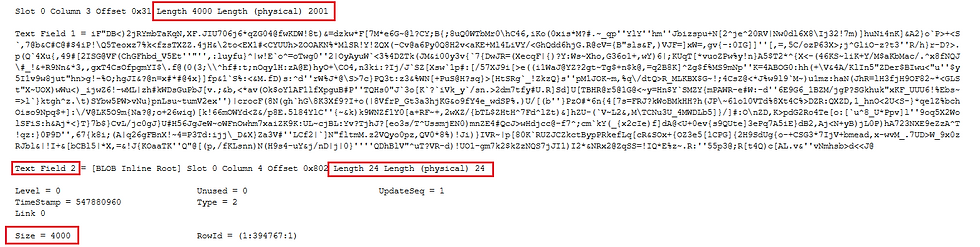
I don't want to throw another screenshot of a page dump at the reader, but in the contents of the row overflow page, we can now see all the zero bytes, preserved in every Unicode byte pair.
This result is expected and documented in the same article, in a note which reads
Unicode compression supports the fixed-length nchar(n) and nvarchar(n) data types. Data values that are stored off row or in nvarchar(max) columns aren't compressed.
So the moment we force a text column to be shifted to off-row storage, we lose all compression on this column. And this explains the mystical increase in the table size from 8 to 12 MB: each record now occupies a full 8 KB data page, plus takes additional 4 KB in the overflow storage. Here, two 4000-byte columns can be allocated in one page, so one additional page is required per two table rows.
The TLDR of this text is: be mindful when declaring tables with many long text fields. SQL Server has mechanisms allowing to accommodate rows exceeding the 8 KB limit, but these are meant for occasional overflows. Tables with the majority of records exceeding the limit can impact query performance, as well as the storage capacity.

Comments